» BackCall Request (SOS)
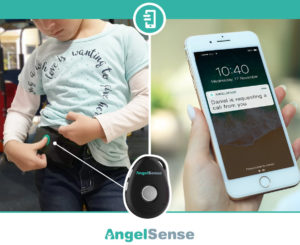
By pressing the SOS or Call Request button on their device, your loved one can let you know that they want a call from you!
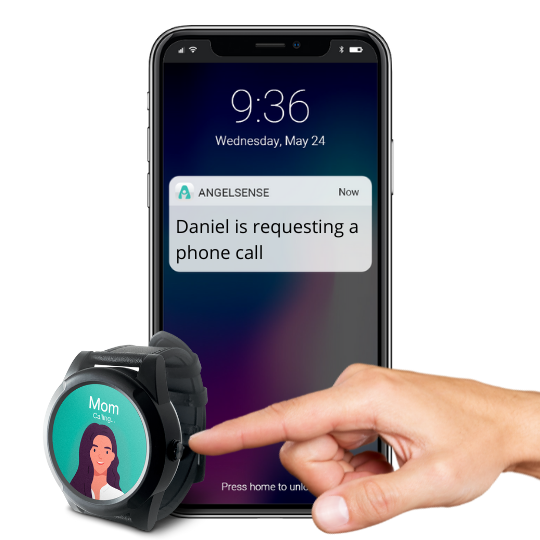
- The Guardian can set up the Call Request Settings from their app to avoid accidental or repetitive call requests.
- When either of the front buttons are pressed according to the Call Request Settings, you will receive a notification that they would like a call from you.
- “Hunter is requesting a call from you.“

- You can then call the device by using 2-Way Voice or 1-Way Voice
- Once a call has been completed, the authorized Guardians will receive a Call Confirmation notification as below.
- Mobile notification: “Mom has ended a 2-Way call with Hunter” or “Mom has ended a 1-Way call with Hunter“
- Email: “Mom has ended a 1-Way call with Hunter. Call duration was 0:20 minutes. Your remaining balance is 56:32 minutes.“
Note: To enable/disable this feature in your AngelSense app:
*In App Versions below 4.0.0, you would go to the Main Menu > Settings > Voice & Alarm > SOS Button
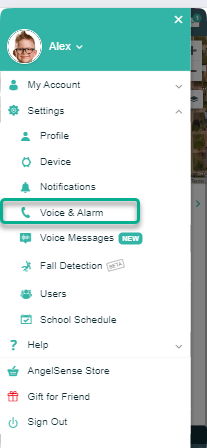
*In App Versions 4.0.0 and above, you would to to the Main Menu > Settings > ‘SOS Button’
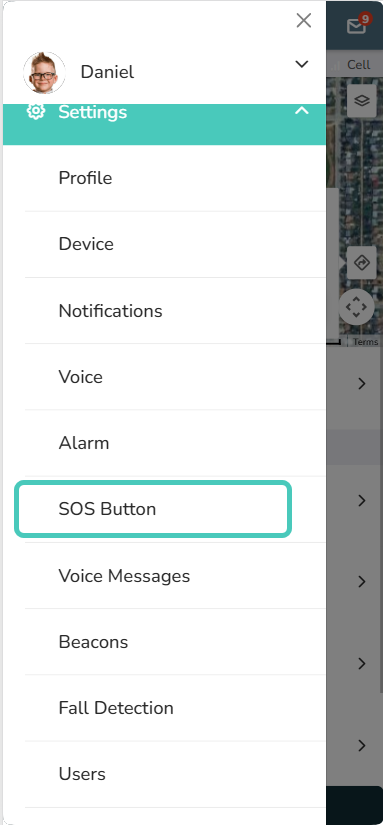
**Please note:
- Enabling the SOS button will allow the Angel to stop the Alarm.
- Disabling the SOS button will prevent the Angel from stopping the Alarm.
- Watch: The Alarm will stop after 2 minutes OR when you press ‘Stop’ in your Tools Menu
- GPS 4: The Alarm will stop based on the Alarm settings OR when you press ‘Stop’ in your Tools Menu
Notes
At this time, if you have a call function disabled during school hours you will receive a call request notification and it will note that the voice featres are disabled.
Ex. Alex is requesting a call from you – Call options are currently disabled.
See: Disabling Voice Features during school hours