Voice Messages
Record Voice Messages and play them remotely on your loved one’s AngelSense device on-demand, or automatically at the time or location that you predefine.
The recorded message allows you to remind your loved one of a task (e.g. “Wash your hands”, “Take your pill”, or “Walk the dog”) or to simply automatically greet them (e.g. “Have a wonderful day at school”).
Add a Voice Message
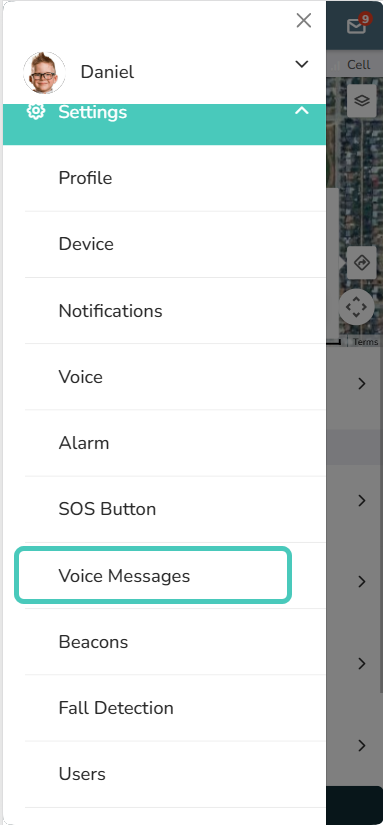
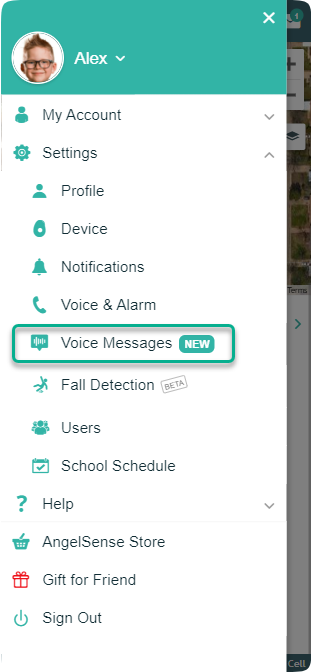
- Go to ‘Voice Messages’ in the Settings
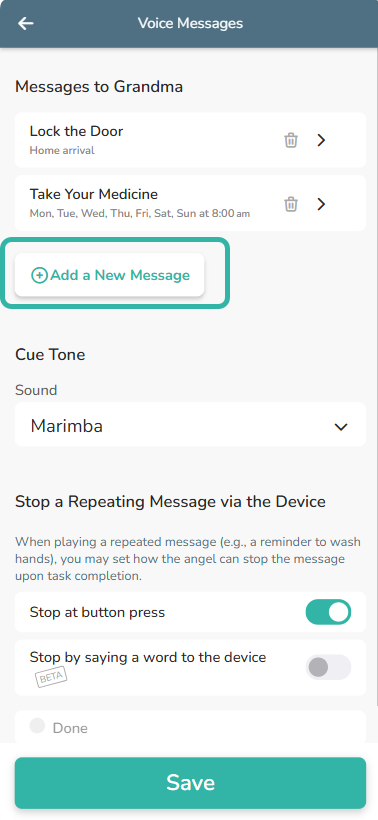
- Click “Add Message”
- Select When and Where to Play Message
- On-Demand
- This option gives you the ability to simply send the Voice Message when needed by going into your app and using ‘Send Message Now’
- For example, “I love you” just when you feel like sending it!
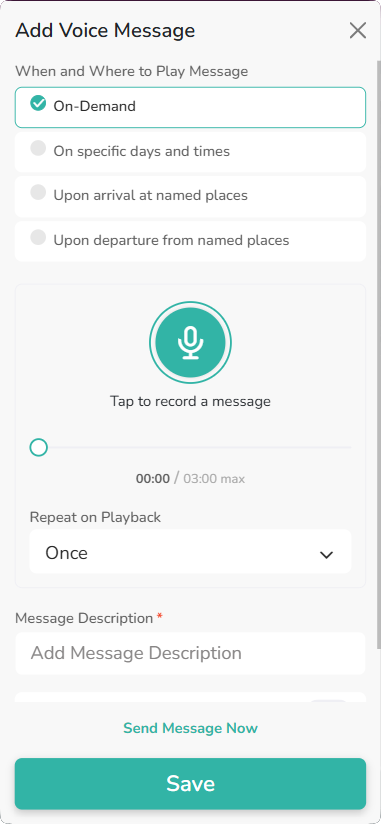
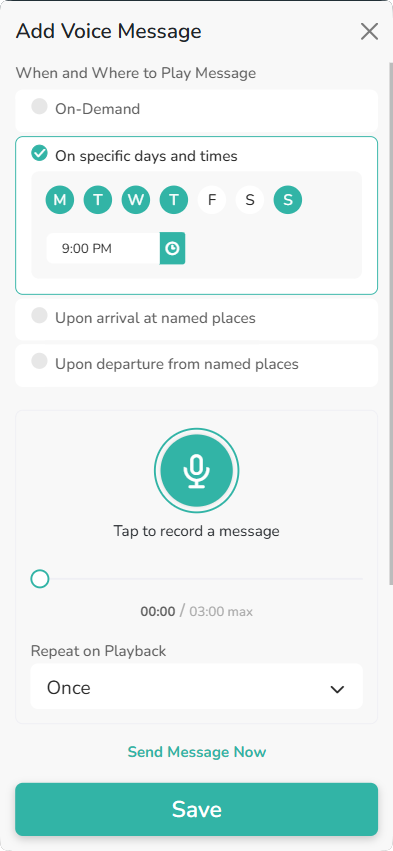
- On specific days and times
- This option allows you to set your device to automatically play the recorded message on specific days at a specific time
- For example, “Go to Bed” every night before school
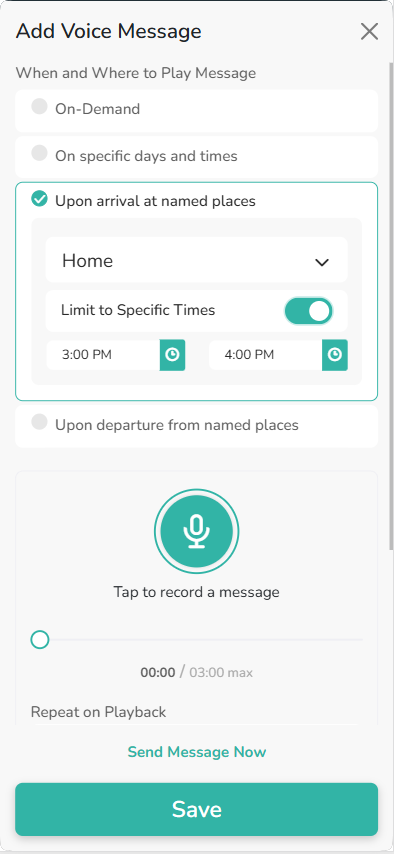
- Upon arrival at named places
- This option allows you to send the recorded message when the devices arrives at a specific named place. You can also limit it to only send during certain time periods.
- For example, “Have a good day!” can be sent when leaving Home in the mornings.
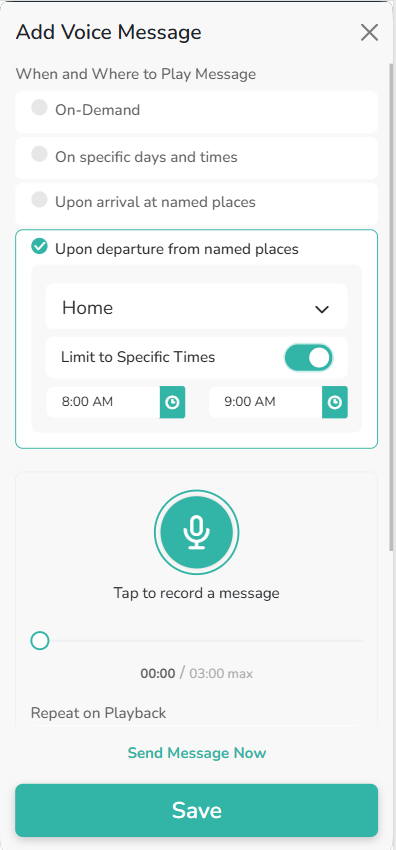
- Upon departure from named places
- This option allows you to send the recorded message when the devices leaves from a specific named place. You can also limit it to only send during certain time periods.
- For example, “Welcome Home!” upon arriving at Home after school.
- On-Demand
- Record the message
- Tap the microphone to Record a message and tap when you are done recording
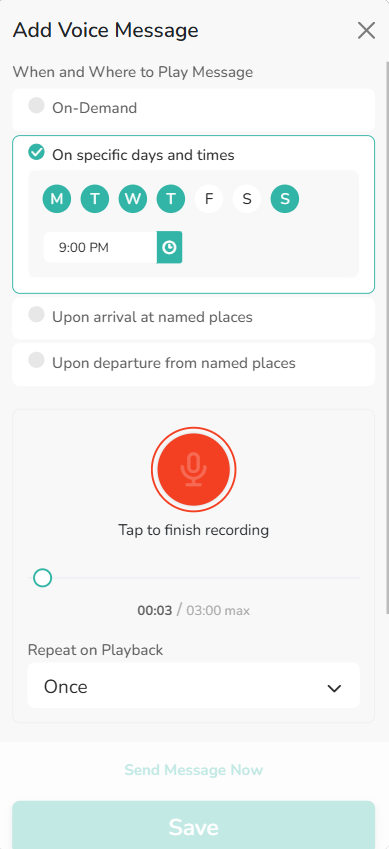
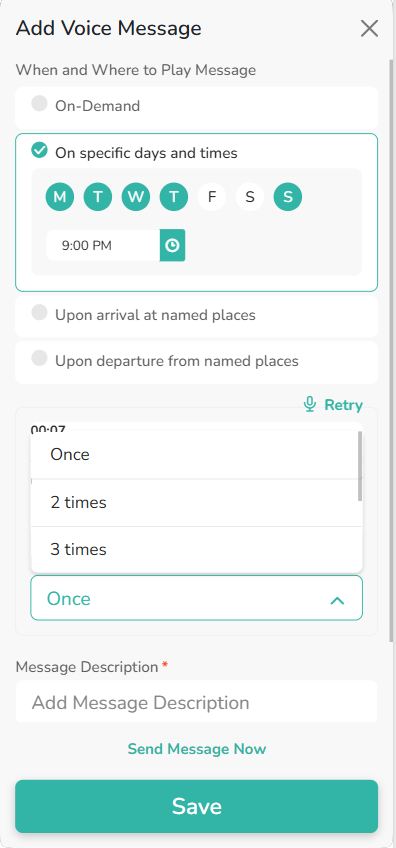
- Define how many times (Once, 2 times, 3 times) the message should be repeated on playback
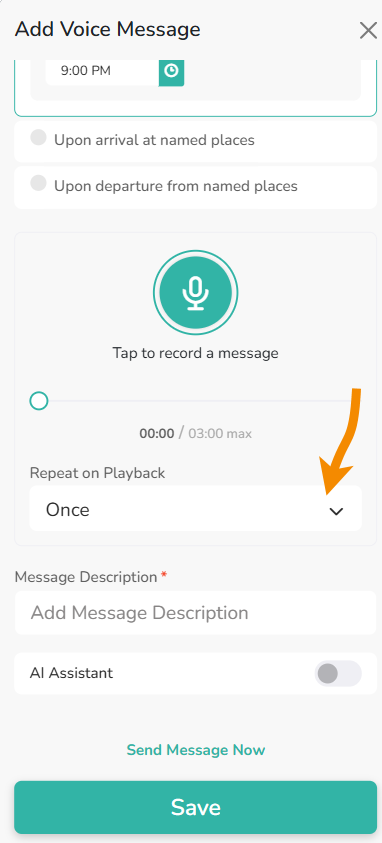
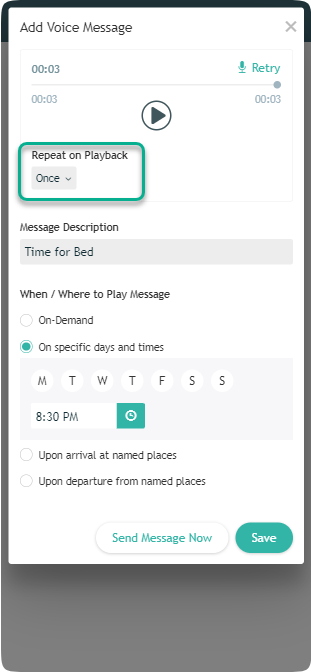
- Provide a description of the Message
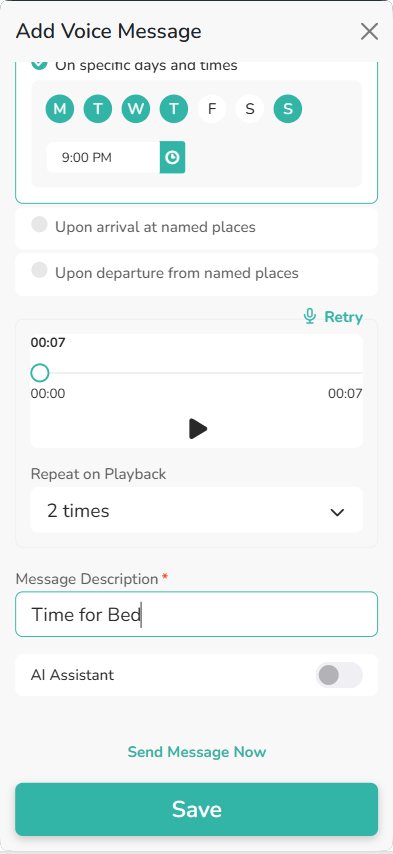
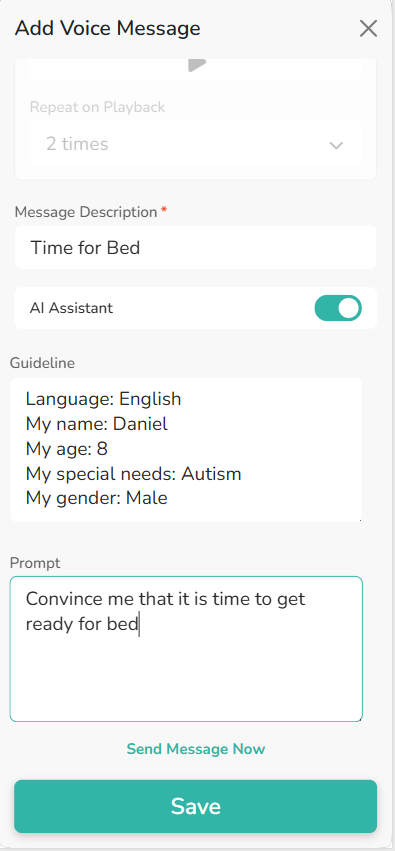
- *NEW* AI Assistant (Only on App Versions 4.0.0 and above)
- With the AI Assistant, instead of recording a message you can give the AI a Prompt to tell it what it should talk to your Angel about. Your Angel can respond to the AI Assistant in order to get a response.
- Save your new Voice Message
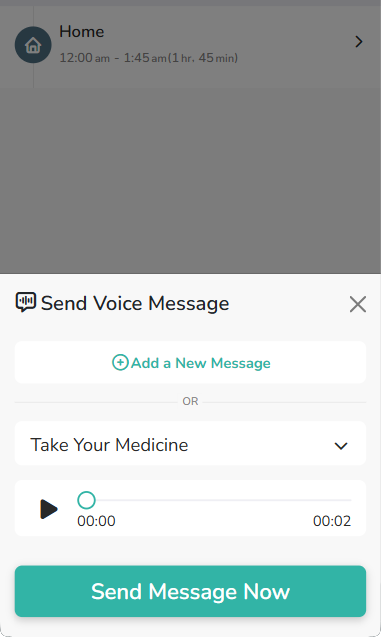
To send the message right then, simply click “Send Message Now” (the message will also be saved).
General Message Playback Settings
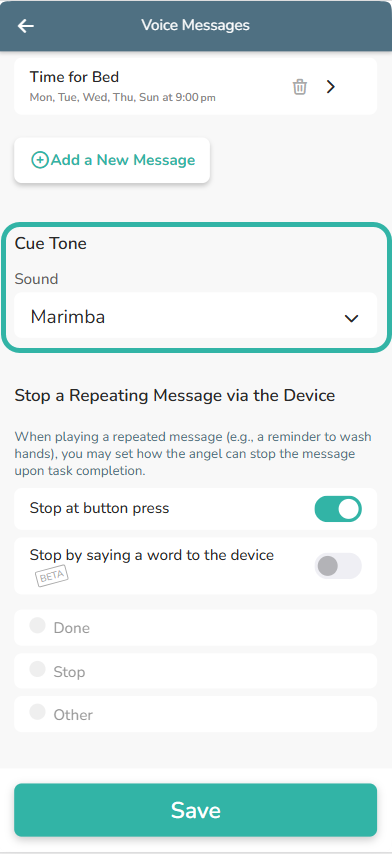
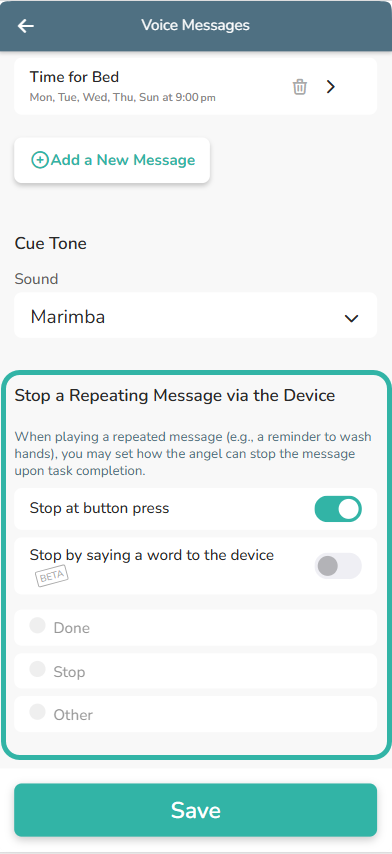
Below the list of voice messages, there are two additional settings that apply to all messages:
- Select a cue tone that will play before the message starts
- Enable an option for your loved one to stop a repeating message playing
- Stop at Button Press: Via the SOS button on the GPS4 or the red icon on your watch screen
- Stop by saying a word to the device (*BETA on App Version 4.0.0 and above*): Stop by saying a word to the device to stop it repeating.
Message Playback
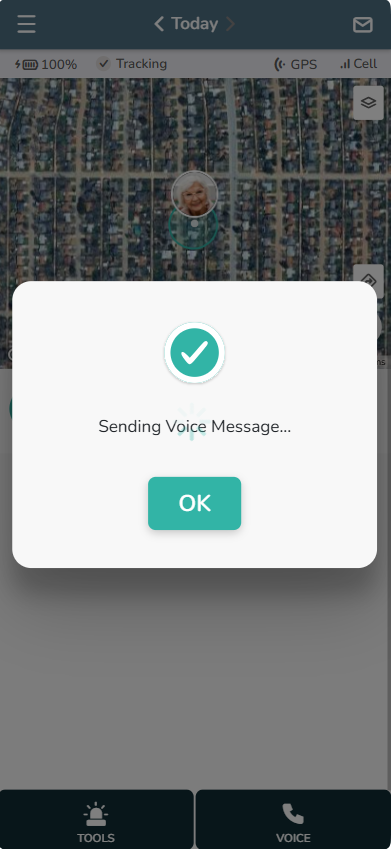
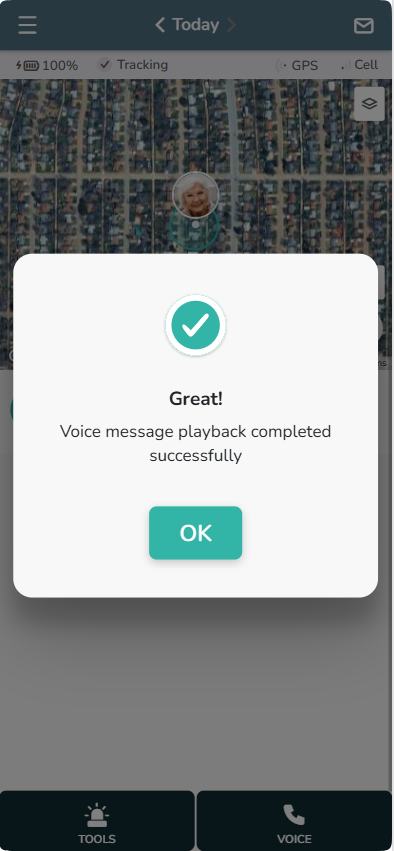
To start remote message playback on your loved one’s device
- Click ‘Voice Message’ in the Voice menu
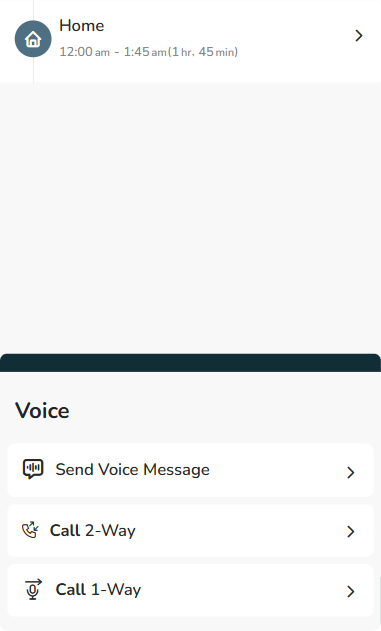
- Select the message and click ‘Send Message Now’.
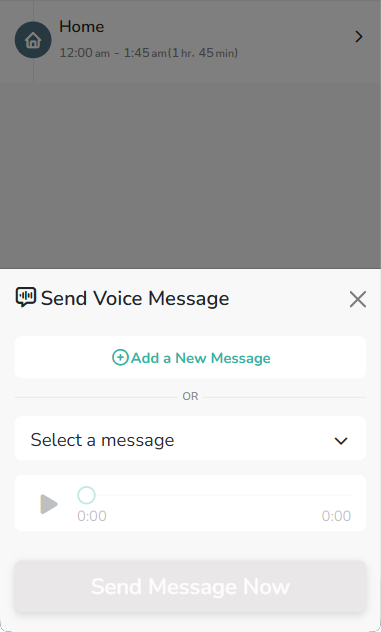
- If you haven’t recorded any messages yet, select ‘ Add a New Message’
Voice Minutes
Voice messages use your regular voice minutes.
School Schedule
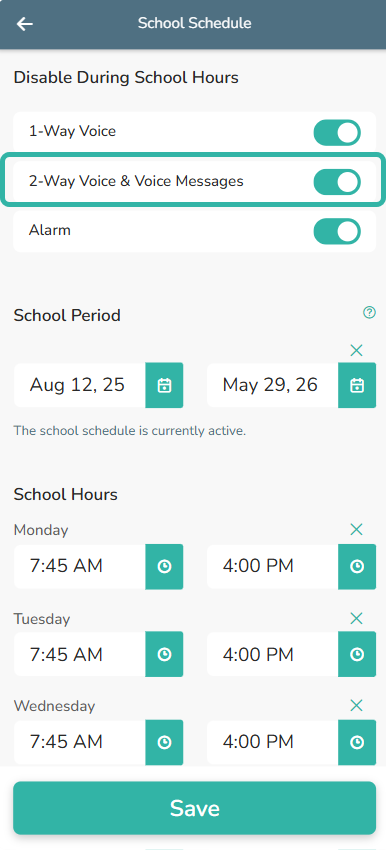
Voice messages will not play during school hours if ‘2-Way Voice & Voice Messages’ is disabled with School Hours set, as shown below.